You go to a jobsite.
You have a job to do.
There’s a tenant in an upfit that requires 15 new VAV boxes.
You have no remote access to the job site, so you weren’t able to look at the JACE ahead of time.
You start out your tech work, ensuring you have good communication of boxes, wires are good, etc. Now you bring in your boxes, one by one, and now you hit a snafu - You have a box that’s orange and in fault! Why? Not because of improper communication, but because you’ve exceeded your Global Capacity!

You can check the license to find out how many devices there are, but lets face it…
Who wants to go through all this:

Which leads to:

Now it’s our job to make the necessary tools we need to perform our job, and sometimes things get missed. Especially with core/shell jobs, licenses are purchased only for the core devices and not the tenant devices. Sometimes that gets missed in the estimate! Never fear though! It will always be corrected.
How else can we see this without going to the license?
There are multiple ways to check this. However, the two most popular methods to find this information are the following:
-
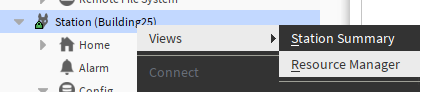
Right-click on the station and go to views → Resource Manager
-
When the resource monitor shows up, scroll halfway down and you will see the globalCapcity information that you were looking for.

The other option is this:
-
Right-click on the station and select spy
-
In the Remote Station Web Browser View, select Metrics
-
Then you will see your metrics in the web browser view


You can also type spy:/metrics in the locator bar as well and pull up the same thing, but whos got time to be doing something like… typing? WAYYYY too much effort! But I digress.
What can we do with this information?
Well… in its current form… nothing! Its information we need to know about. However this is a way to grab this information, its just going to require more typing than anticipated! If there was a way to get this information for all Niagara Controllers (JACEs/Edge Controllers) and put it on the supervisor, we could create a report to figure out when we need a new license!
Please tell me youre not talking about a program object?!?
Why yes, in fact I am! However, have no fear! The rest of this article goes through the step-by-step process! At the end, I will paste the entire code for you to use!
As you may or may not know, the Niagara framework is built on Java. You dont need it installed on your laptop anymore, especially if youre looking on the web browser side. The application is a Java application and many applications are (more than you think). One thing that makes Niagara unique is the ability to write custom objects that can do some quirky things! However, in order to do this, you need to know Java. Niagara uses an API called BAJA (Building Automation Java Architecture). It’s their own API they created in the long, long ago (my favorite term for way back when). Utilizing the help documentation will be most helpful when developing modules or writing custom program objects, such as this.
Program objects are very powerful, however, should be used lightly in a station. If you’re going to use a program object more than once in a system, you’ll want to create your own module (We will be discussing how to do that in future articles).
Breakdown and concepts of the program object
When I conceptualize a program object or object for a module, it’s always good to have a clear plan on what you’re trying to do:
First thing we would need to do to capture the metrics in some kind of output, then take that format in a way we can understand. After we find the formatting, we may need to clean up that format and remove unnecessary strings or characters. From here, we need to parse through the relevant data and give it somewhere to go to be displayed.
Stringing it along
One of the first things we would need to do to find a way to capture the formatted output. Java has a good class to use, and it’s called StringWriter

A StringWriter in java is a class from the java.io package (again, we will need that for later) that allows you to write character data into a string buffer, which can then be converted into a String. It acts as a character stream but following a writer interface.
Here’s an example on how it would look:

This will be the start that we need, but where do we use this new writer? How do we get the Spy Metrics from this?
I Spy with my little eye…
In the help contents if we were to type Spy in the search bar, we will see a many items, from bajadocs to java files and more!
At the top of the search, we will see Spy, and if we were to click this, we will see the following:

The picture is a little small, but my arrow points to a link to a package called javax.baja.spy (remember this package as well!)
We can use this to build diagnostic tools With this package, we can look at the classes:

With the these two specific classes, BSpy will return an instance of this, so we will need to make an object of BSpy by doing something called casting (Meaning that we are converting a variable from one data type to another). The SpyWriter will take whatever Spy page we want and make HTML content from it!

How are we going to write to this you ask? With the StringWriter from above!
We will be using one of these constructors above to create a new instance of SpyWriter and using the StringWriter as the writer in this case.
Walk the line!
Since we are we can create the spy metrics page into an HTML output, we will need to take some of the structure out of the HTML such as . To do this, we will use the replace method to get rid of that. But how do we parse these lines? We will use an array to parse through the writer and use a for loop to iterate each through each line to extract the relevant information. Then we can remove the unnecessary HTML-like formatting from the text.
Try catching the ball!
One thing you can use in code to create exceptions when there are issues. To do this, we will use a try/catch block. What the try/catch function does is literally try a block of code and then if there are exceptions, we can catch those errors by creating exceptions and put them in the application director so we can see what happens in real time.
Here is an example of a try/catch block:

If we went to the application director it will output Error: Division by zero is not allowed.
A wide variety of exceptions can be used but a NumberFormatException will work nicely here to handle number formatting errors gracefully.
Now that we have a plan, let’s put it together!
To summarize, here’s what we need to do for our program:
-
Capture the metrics of the spy:/metrics in an output stream.
-
Split the lines into data for processing
-
Iterate through each line and extract the relevant information, and remove unnecessary HTML formatting from the text
-
Extract Networks, Devices, Points, Links, Histories and Schedules
-
Report any errors in the application director
Program time!
If you have never added a program object before to station, you will find this in the program palette. After opening the palette, you will add a program object to a wiresheet and name it whatever you like!

My object is going to be called Station Metrics!
Right-click on your program and select the program editor, which will take you to a 4 tabbed view.
For those aren’t familiar with this process, let’s break it down:
Edit - This tab is where the actual code is written
Slots - Slots are properties of the program object. We can add properties that invoke actions, view properties from the wiresheet, and more.
Imports - This is where the packages we mentioned above and a few more will need to be added
Source - This is where you can see the entire source code from start to finish. This is a read-only screen, so you can only copy from it.
Slot Machine
The first tab I start with is the slots tab. This is my preferred way of building a program object. I won’t know what getters and setters I have until I mapped them all out.
To add slots, right-click on the slots page and select Add Slot.

In the dialog window that pops up, this is where you name your slot, the type it is, and any flags you would like to configure.

When you name slots, it’s good practice to start with all lower case words and the first letter after each subsequent word to be capitalized. So NetworksLimit would be networksLimit. When the getters and setters are created, the “n” would be capitalized, e.g. getNetworksLimit or setNetworksLimit.
Setting the Readonly and Summary flags that not only the property cannot be written to, but the property is viewed on the wiresheet as well.
After you click OK, add the other used and limits to the program object like in the screenshot below:

We night need to revisit this for some additional features but for now, we will start with this.
Coding time!
Why are we not adding the imports next? The reason for that is I want to show you what happens when the proper packages aren’t used right away. In the Edit tab, you will see that we have 3 sections of code that we can edit.
onStart() - This is the section that we could execute code when the component starts
onExecute() - This is the section that the main code is typically (I said typically because you can make different methods that have other code), written. When something triggers onExecute() the code will execute accordingly. This can be because of an action, or even a change of an input.
onStop() - This method is called when the component stops. I like using this for cleanup operations.
If we exceed our global capacity, in order for the station to accept the new license and remove the controllers fault causes, we need to restart the station. For that reason, we will call the onExecute() method in the onStart() method.

You can still right-click and select execute when you add components, links, etc. But it will not update if you delete them, which is why you have to restart the station. That’s why we are calling the onExecute method in the onStart method.
Comment as much as you can, as it will help someone understand your code better when they read it!
In the onExecute method, we will perform the metric retrieval. We are going to break this down into the lines of thinking that we laid out before.
Remember, we first need to capture the output, retrieve the metrics from spy:/metrics and fetch them. That leads to the next lines of code:

The first two lines of code may make sense to you, but we are making a StringWriter to format the output and using a SpyWriter to retrieve the metrics in an HTML format. However, what about the third line here? Why do we need to cast BSpy onto BOrd? The casting of BSpy from BOrd is required because of how Niagara handles object resolution using BOrd. Heres why:
Cast away!
We are making an ORD (BOrd.make(spy:/metrics)) that points to the location which is used to retrieve the metrics of global capacity. Then we need to resolve the ORD against a component, which is why we are using .get(getComponent()) method resolves the ORD relative to a component (usually a station). The get() method fetches the actual object that BOrd resolves to. Since the ORD spy:/metrics is expected to resolve to a BSpy instance, we need to cast the returned object to BSpy. After that we are using the write() method to write the collected metrics to the output stream.
Another way this could be done, to avoid a ClassCastException if the resolution fails we could use something like:

Back to coding!
Now that we’ve gotten all of data from there? We need to take this data and split it into lines. Yes, as stated before, we will need multiple lines. To do this, we will have to use a text utility. Luckily Tridium has one for us!

We will be using TextUtil, and specifically for splitting and trimming strings and replacing substrings (useful for cleaning up and formatting text)

Now we can move on to our next lines of code:

The code is iterating through an array of strings, each containing HTML-like formatted line of text, and cleaning it up by removing specific HTML tags or replacing them with spaces. The for loop is the best way to iterate through each string in the lines array, then we use TextUtil.replace() to strip out the unnecessary HTML tags. Now we can set the limits and used values columns from the spy:/metrics columns. This is where we will use a try/catch function to handle exceptions for errors. However, we have a slight issue:

Some of these metrics have no limits! They also tell you there isn’t a limit by using the string “none”, so how are we going to handle the string of none? We can replace them with 0 for the missing metrics. We can use another for loop to iterate through the lines and set a default value of 0 for the missing metrics! If I’m going to make a graphic, I probably wouldn’t use those numbers anywhere. There are some other tricks we could do, but this is the easiest solution.
With this line of code:

This helps us take none from the limits column (Column 1) and set them to 0. This was the best way I could think of how to do that. Now we reference columns 1 (Limits) and 2 (Used) and set the metrics to be seen.

So the logic behind this section of code that contains the strings of Networks, Devices, Points, Links, Histories, and Schedules by checking the type of metric that corresponds to using startsWith(). Then the values are extracted from the gcNumbers[] array. Then we clean out the commas and converting the values of the array to integers. The values are stored in all the setters above.
Better Optimization?
Now java developers reading this article may wonder why Im just using a switch-case with switch expressions. Unfortunately, that’s only available in Java 14+ and we are currently using Java 8.
While writing this article, it could be possible to use a HashMap for better extensibility. It would make this more scalable. To show you the example, it would be this:

Anyway… I digress… Onward with finishing the rest of the code!
Back to coding (finishing it this time)… again!
Since we used the try block, lets catch those exceptions!

Those exceptions are from the java.lang package. I would recommend going to W3 Schools and looking them up!
Now, we could finish the code here.
BUT… one thing that could be useful for a customer is the timestamp when the block executed.
So lets add that!

However, since we added this, we need to add a slot for this! So go back to the slots tab. Add the name of lastExecutiontime , the flags of Readonly and Summary , and the type of baja:AbsTime .

Compiling time and fixing errors!
Now that we’ve finished, we can save and compile…
BUT we never added our imports. If you are missing packages you will get the following errors:

All those packages we need? We will add them to the imports tab. Where do we find those packages? There are two methods:
-
We can go to the help documentation, find the packages in the classes and import them one at a time.
-
We can import the type, which will import the package.
Either way, here are all the packages or types we need:
java.io - StringWriter
javax.baja.spy - BSpy and SpyWriter
javax.baja.file - FilePath (FilePath is a specialization of OrdScheme for file queries.)
javax.baja.naming - BOrd
The other packages are already with the original program object, so I didn’t list them.
Now if there are any spelling errors, missing slots, etc, clean those up too!
Finished Product!
This is the program object in its completion!

Now you add numeric writables and other objects to send these to your supervisor for some BQL Queries!

Admittedly, the Networks Limit, Links Limit, Histories Limit, and the Schedules Limit do not have to be linked or used at all. So those can be disconnected. In a graphic, these would be just replaced with a text box that says “None”. Here’s a graphic for reference:

That’s all I have for now! Thank you for this long article! Have a great one and until next time!
Here is the code below:
/* Auto-generated ProgramImpl Code */

import java.util.*;              /* java Predefined*/
import javax.baja.nre.util.*;    /* nre Predefined*/
import javax.baja.sys.*;         /* baja Predefined*/
import javax.baja.status.*;      /* baja Predefined*/
import javax.baja.util.*;        /* baja Predefined*/
import com.tridium.program.*;    /* program-rt Predefined*/
import java.io.*;                /* java User Defined*/
import javax.baja.spy.*;         /* baja User Defined*/
import javax.baja.file.*;        /* baja User Defined*/
import javax.baja.naming.*;      /* baja User Defined*/

public class ProgramImpl
  extends com.tridium.program.ProgramBase
{

////////////////////////////////////////////////////////////////
// Getters
////////////////////////////////////////////////////////////////

  public int getNetworksLimit() { return getInt("networksLimit"); }
  public int getNetworksUsed() { return getInt("networksUsed"); }
  public int getDevicesLimit() { return getInt("devicesLimit"); }
  public int getDevicesUsed() { return getInt("devicesUsed"); }
  public int getPointsLimit() { return getInt("pointsLimit"); }
  public int getPointsUsed() { return getInt("pointsUsed"); }
  public int getLinksLimit() { return getInt("linksLimit"); }
  public int getLinksUsed() { return getInt("linksUsed"); }
  public int getHistoriesLimit() { return getInt("historiesLimit"); }
  public int getHistoriesUsed() { return getInt("historiesUsed"); }
  public int getSchedulesLimit() { return getInt("schedulesLimit"); }
  public int getSchedulesUsed() { return getInt("schedulesUsed"); }
  public BAbsTime getLastExecutionTime() { return (BAbsTime)get("lastExecutionTime"); }

////////////////////////////////////////////////////////////////
// Setters
////////////////////////////////////////////////////////////////

  public void setNetworksLimit(int v) { setInt("networksLimit", v); }
  public void setNetworksUsed(int v) { setInt("networksUsed", v); }
  public void setDevicesLimit(int v) { setInt("devicesLimit", v); }
  public void setDevicesUsed(int v) { setInt("devicesUsed", v); }
  public void setPointsLimit(int v) { setInt("pointsLimit", v); }
  public void setPointsUsed(int v) { setInt("pointsUsed", v); }
  public void setLinksLimit(int v) { setInt("linksLimit", v); }
  public void setLinksUsed(int v) { setInt("linksUsed", v); }
  public void setHistoriesLimit(int v) { setInt("historiesLimit", v); }
  public void setHistoriesUsed(int v) { setInt("historiesUsed", v); }
  public void setSchedulesLimit(int v) { setInt("schedulesLimit", v); }
  public void setSchedulesUsed(int v) { setInt("schedulesUsed", v); }
  public void setLastExecutionTime(javax.baja.sys.BAbsTime v) { set("lastExecutionTime", v); }

////////////////////////////////////////////////////////////////
// Program Source
////////////////////////////////////////////////////////////////

  public void onStart() throws Exception
  {
    // Call the onExecute method when the component starts to execute the metric collection
    onExecute();
  }

  /**
   * Executes the onExecute method to retrieve and process station metrics for Global Capacity
   */

  public void onExecute() throws Exception
  {
    // Create a new instance of StringWriter to capture the formatted output from "spy:/metrics"
    StringWriter stringWriter = new StringWriter();

    // Create a new instance of SpyWriter to retrieve the system metrics from the ORD spy:/metrics
    SpyWriter spyWriter = new SpyWriter(stringWriter, new FilePath("/"));

    // Casting BOrd as BSpy and fetch the metrics
    ((BSpy) BOrd.make("spy:/metrics").get(getComponent())).get().write(spyWriter);

    // Split the captured data into lines for processing
    String[] lines = TextUtil.splitAndTrim(stringWriter.toString(), '\n');

    // Iterate through each line to extract relevant information
    for (int i = 0; i < lines.length; ++i)
    {
      // Remove unnecessary HTML-like formatting from the text
      String line = TextUtil.replace(lines[i], "<tr><td align='left' nowrap='true'>", "");
      line = TextUtil.replace(line, "</td><td align='right' nowrap='true'>", " ");
      line = TextUtil.replace(line, "</td></tr>", "");

       try
       {
         String[] gcNumbers = TextUtil.splitAndTrim(line, ' ');

         // If "None" appears in the expected numerical fields, replace with "0"
         for (int j = 1; j < gcNumbers.length; j++)
         {
           if ("None".equalsIgnoreCase(gcNumbers[j]))
           {
             gcNumbers[j] = "0"; // Default value for missing metrics
           }
         }

         // Extract and process the "Networks" metrics
         if (line.startsWith("Networks"))
         {
           setNetworksLimit(Integer.parseInt(TextUtil.replace(gcNumbers[1], ",", "")));
           setNetworksUsed(Integer.parseInt(TextUtil.replace(gcNumbers[2], ",", "")));
         }
         // Extract and process the "Devices" metrics
         else if (line.startsWith("Devices"))
         {
           setDevicesLimit(Integer.parseInt(TextUtil.replace(gcNumbers[1], ",", "")));
           setDevicesUsed(Integer.parseInt(TextUtil.replace(gcNumbers[2], ",", "")));
         }
         // Extract and process the "Points" metrics
         else if (line.startsWith("Points"))
         {
           setPointsLimit(Integer.parseInt(TextUtil.replace(gcNumbers[1], ",", "")));
           setPointsUsed(Integer.parseInt(TextUtil.replace(gcNumbers[2], ",", "")));
         }
         // Extract and process the "Links" metrics
         else if (line.startsWith("Links"))
         {
           setLinksLimit(Integer.parseInt(TextUtil.replace(gcNumbers[1], ",", "")));
           setLinksUsed(Integer.parseInt(TextUtil.replace(gcNumbers[2], ",", "")));
         }
         // Extract and process the "Histories" metrics
         else if (line.startsWith("Histories"))
         {
           setHistoriesLimit(Integer.parseInt(TextUtil.replace(gcNumbers[1], ",", "")));
           setHistoriesUsed(Integer.parseInt(TextUtil.replace(gcNumbers[2], ",", "")));
         }
         // Extract and process the "Schedules" metrics
         else if (line.startsWith("Schedules"))
         {
           setSchedulesLimit(Integer.parseInt(TextUtil.replace(gcNumbers[1], ",", "")));
           setSchedulesUsed(Integer.parseInt(TextUtil.replace(gcNumbers[2], ",", "")));
         }
       } // curly brackets that close try block

       catch (NumberFormatException nfe)
       {
         System.out.println(getComponent().getSlotPath() + " - Error parsing number.");
         nfe.printStackTrace();
       }

       catch (Exception e)
       {
         System.out.println(getComponent().getSlotPath() + " - Unexpected error.");
         e.printStackTrace();
       }
     } //closes for loop

     // Update the last execution time with the current timestamp
     setLastExecutionTime(BAbsTime.make());

  } // end onExecute() block

}